


Documentation
Initializing Amigo Documentation... 100%
✔ 13 sections loaded | Version 0.2.0
01 — WHAT IS AMIGO?
Amigo is an AI-powered assistant, specially developed for the Amiga community. It combines cutting-edge AI technology with deep Amiga expert knowledge. Intelligent Chat AI with Amiga expertise and RAG knowledge base with thousands of documents Code Editor Syntax highlighting for Amiga languages: 68000 ASM, AMOS, Blitz, C, ARexx Amiga Emulator WinUAE/AROS integrated directly in the client – run code instantly Knowledge Base Custom Chips, hardware, AmigaOS, Workbench, demos, games and history |
02 — GETTING STARTED
Get started in three simple steps: 1
Create an Account Register at retroprojects.de. The FREE plan is immediately available. 2
Choose a Plan Choose between FREE, BASIC and PRO – depending on your needs. Upgrades are possible at any time. 3
Start Using Amigo Start a chat with Amigo, browse the Amiga database or try the code editor. |
03 — LOGIN AND USER MANAGEMENT
LoginLogin is done via your retroprojects.de username and password. Authentication runs securely against the Joomla API.
Create AccountNew accounts are created at retroprojects.de. After registration you can immediately log in to the Amigo client. Token Management
|
Login screen in Retro theme |
04 — CHAT INTERFACE
AI Chat with Amiga ExpertiseThe chat connects you with an AI specifically trained on Amiga knowledge. It uses a RAG knowledge base (Retrieval-Augmented Generation) with thousands of Amiga documents. Markdown RenderingResponses are displayed with full Markdown support:
Code Block Action ButtonsEvery code block has three action buttons: Copy Copy code to clipboard Editor Open code directly in the integrated editor Emulator Run code in the AROS emulator (for compatible languages) The Emulator button appears automatically for: Shell/Bash, ASM (68000), C, AMOS Basic, Blitz Basic, ARexx. |
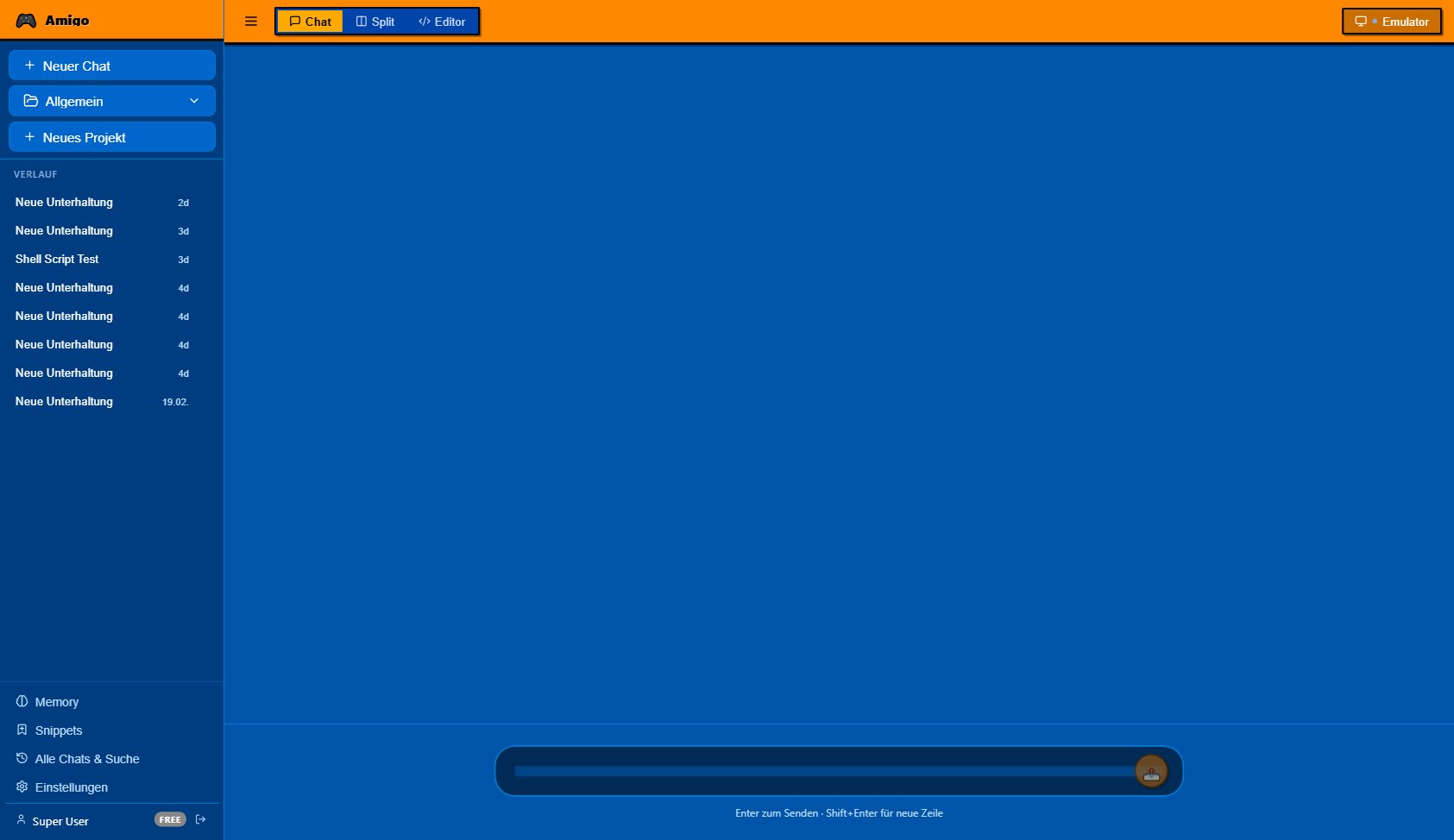
Chat interface with sidebar |
05 — CODE EDITOR
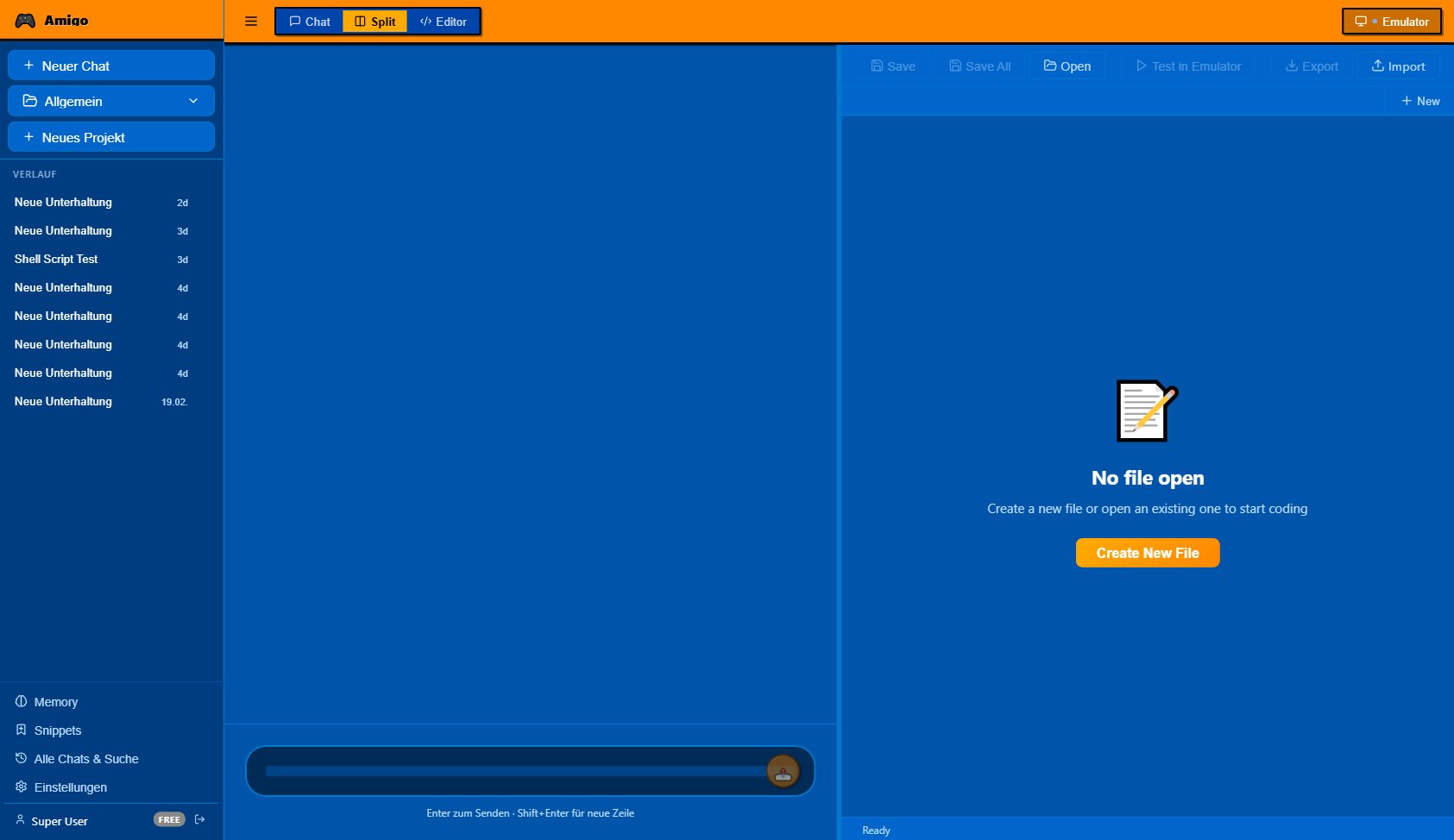
Split ViewThe editor can be displayed alongside the chat (split mode). This allows you to chat with the AI and edit code simultaneously. Features
Workflow1
AI generates code Ask a question in the chat and receive code examples 2
Open in editor Click "Editor" to open the code in split view 3
Edit Modify and refine the code 4
Test in emulator Click "Emulator" to send the code to AmigoOS |
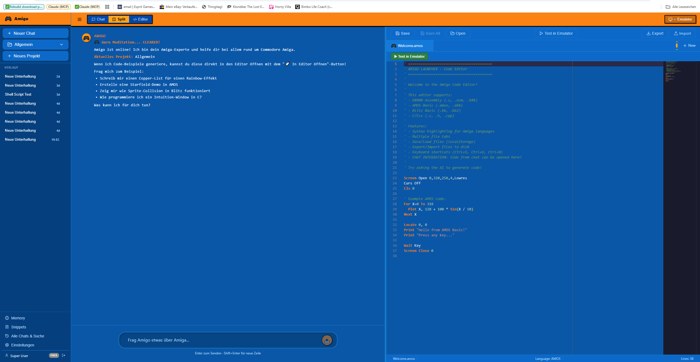
Split view: Chat + Editor |
06 — EMULATOR INTEGRATION (AmigoOS)
OverviewAmigo comes with an integrated Amiga emulator (WinUAE + AmigoOS/AROS). Code examples from the chat can be executed directly in the emulator – no extra setup needed. Emulator WidgetThe emulator button in the top-right of the toolbar shows the current status:
Click to open the dropdown panel with model info, start/stop buttons and the work directory with file listing. Automatic Code Execution – The Pipeline1
Generate code AI creates code in the chat 2
Click emulator button Code block → Emulator button 3
Save script Script is written to the work directory 4
Generate wrapper Auto-execute wrapper is created 5
Start emulator WinUAE starts (or restarts) with AmigoOS 6
Auto-execute AmigoOS boot sequence runs the script 7
Show result Execution banner displays status and result Supported Languages
AmigoOS Specifications
|
07 — PROJECTS AND ORGANIZATION
Project SystemChats are organized in projects. By default there is a "General" project.
Benefits
|
08 — CHAT HISTORY AND CONTEXT MENU
HistoryAll chats are automatically saved and displayed in the sidebar under "History", sorted by date. Three-Dot MenuWhen hovering over a chat entry, a three-dot button appears. Click to open the context menu:
SearchVia "All Chats & Search" in the sidebar you can search all chats – even across projects. |
09 — MEMORY SYSTEM
What is Memory?Memory stores facts and experiences from your conversations. The AI can remember your preferences, projects and previous questions. Facts Concrete information, e.g. "User programs in AMOS" or "Favorite computer: A1200" Experiences Context from previous conversations for better follow-up answers Access via "Memory" in the sidebar. Entries can be viewed, edited and deleted. |
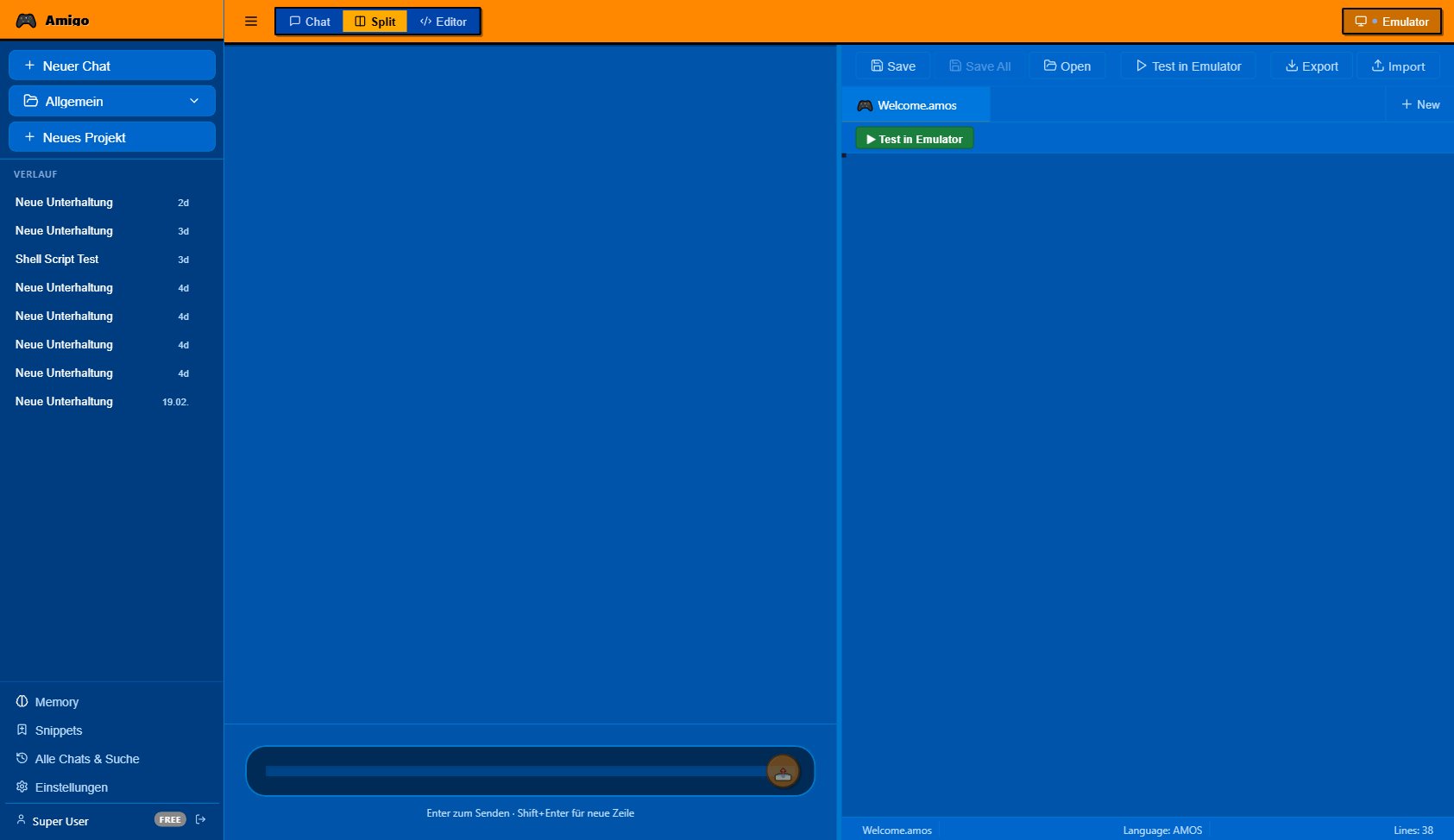
Memory system |
10 — CODE SNIPPETS
Snippet LibrarySave useful code snippets for later use:
Access via "Snippets" in the sidebar. |
11 — SETTINGS AND THEMES
Appearance – Three ThemesDark Theme Dark layout with Amiga orange accents – ideal for long sessions Light Theme Light layout for daytime workplaces Retro Theme Amiga Workbench blue – the authentic Amiga feeling (default!) Editor Settings
Chat Settings
Emulator Settings
|
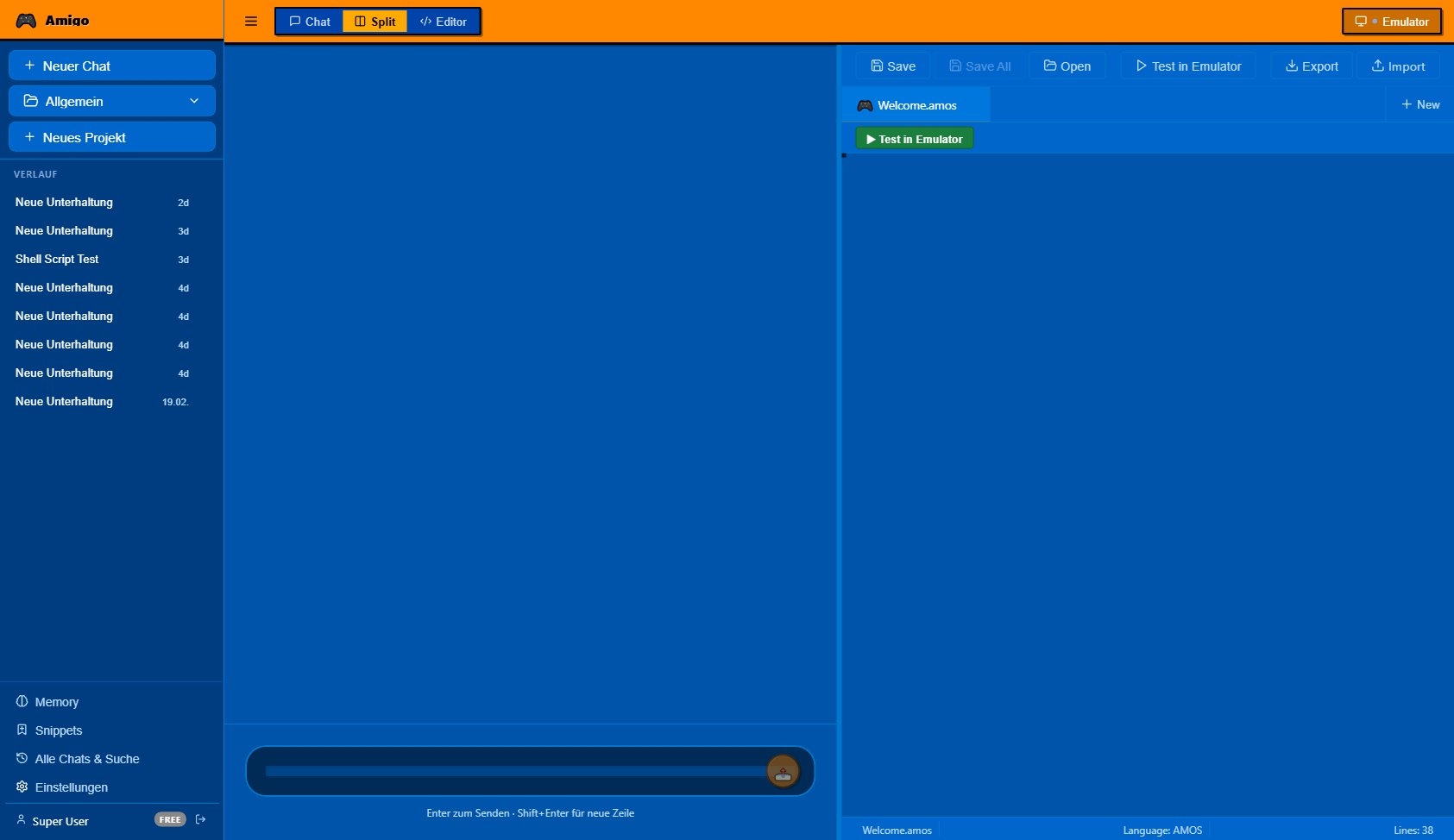
Theme selection |
12 — AUTO-UPDATE SYSTEM
Automatic Update CheckOn startup, the client automatically checks for new versions. The check runs against the retroprojects.de server. Update DialogWhen an update is available, a dialog appears with:
Manual CheckIn Settings under "Info" there is a "Check for Updates" button. Available Platforms
|
13 — SUBSCRIPTION MODEL
Available Plans
Badge DisplayYour current plan is shown as a colored badge in the bottom-left of the sidebar next to your username. Feature UnlockingDifferent features are unlocked depending on your plan. Upgrades are possible at any time via retroprojects.de. |
Version 0.2.0 | 2026 retroprojects.de